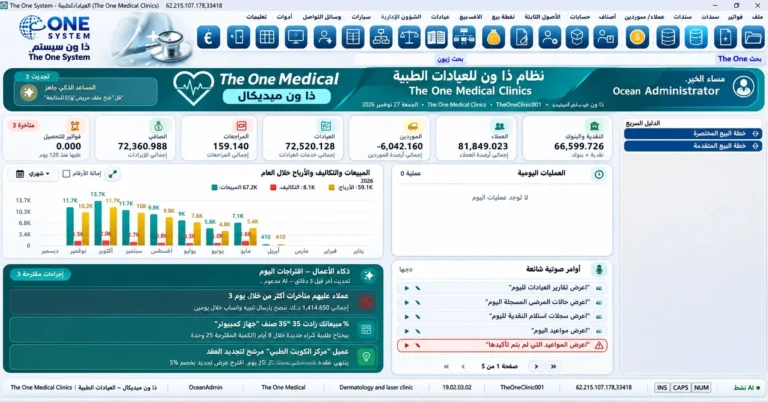
The report preview screen in the system has been redesigned to make reports faster and clearer to read, with printing, export and sending tools always at hand. The new design has been applied to the Trial Balance report as a model, and will be rolled out gradually to the other reports in the same style.
The update focuses on three things: clear data at first glance, quick access to information, and a consistent report layout across the whole system.
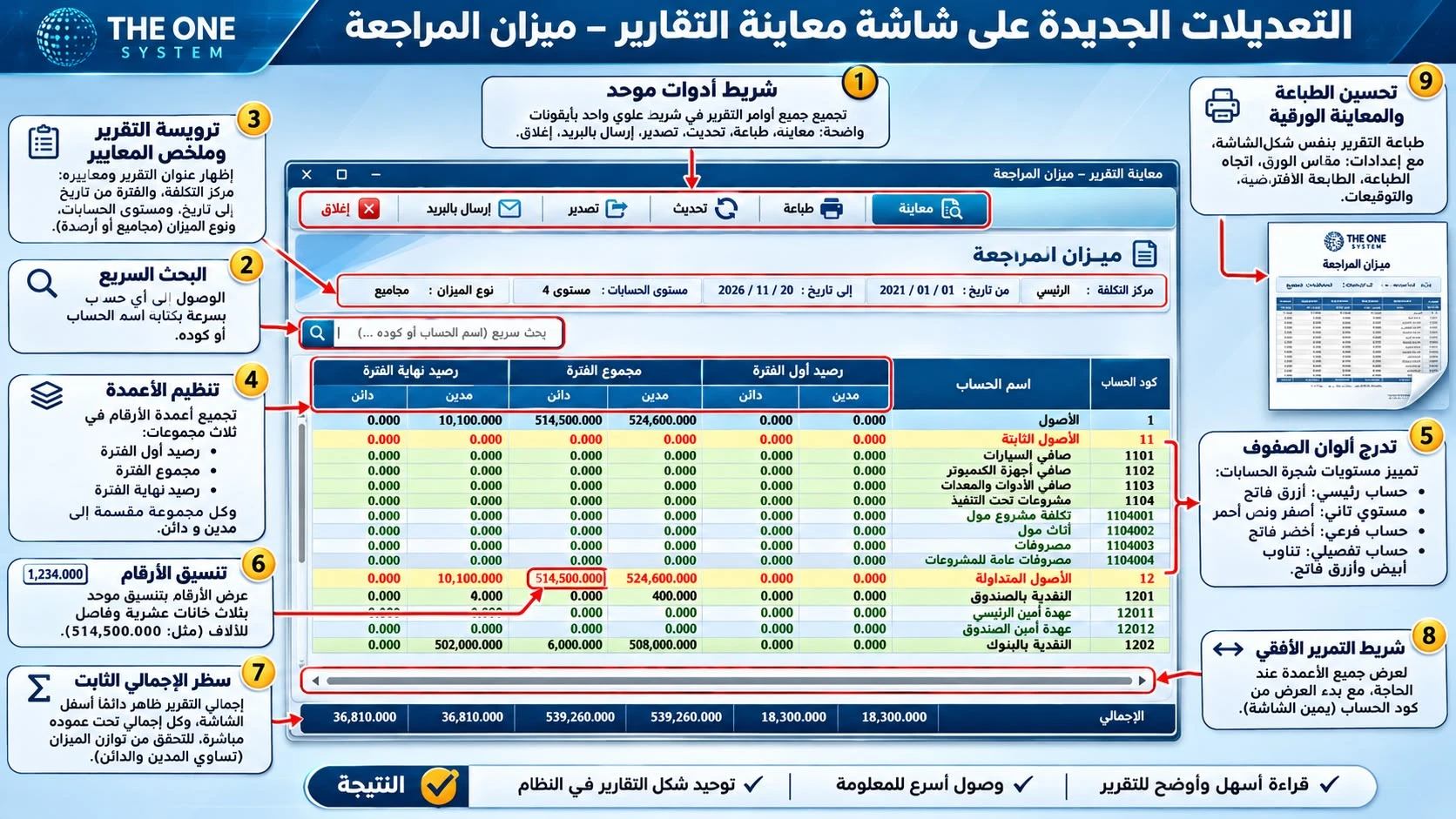
The changes explained
1Toolbar and quick search
All report commands are now grouped in a single top toolbar with clear icons: preview, print, refresh, export, send by email and close.
A quick search box has also been added, so you can jump to any account by typing its name or code instead of scrolling through a long report.
2Report header and criteria summary
The report title appears in a prominent font, with a summary of the criteria the user selected below it: cost centre, date range, account level and balance type (totals or balances).
3Organised trial balance columns
Columns are now grouped into three main sets: opening balance, period movement and closing balance, each split into debit and credit.
4Accounts ordered by the chart of accounts
Accounts follow the chart of accounts, each under its parent account, with rows coloured by account level for easier reading and comparison.
5Consistent number format
Figures use one format with three decimal places and a thousands separator, and the columns stretch across the full screen width for clearer numbers.
6Fixed totals row
The totals row stays fixed at the bottom of the screen at all times, with each total exactly under its column, so you can check that the trial balance balances without scrolling to the end of the report.
7Easier browsing
A horizontal scroll bar shows all columns on smaller screens, and when the report opens the selection starts from the account code column, matching right-to-left reading.
8Printing and print preview
Printing has been improved so reports come out on paper exactly as they appear on screen, with support for printing charts and control over the font, size and colour of the header, footer and company letterhead.
Account levels and how they are shown
| Account level | Display | Example |
|---|---|---|
| Main account | Light blue background | Assets, Liabilities |
| Second-level account | Yellow background with red text | Fixed assets, Current assets |
| Sub-account | Light green background | Cash on hand, Cash at banks |
| Detail account | Alternating white and light blue | Main cash box, Bank no. 1 |
Print settings
- Set the paper size, orientation, type and default printer for each report separately.
- Save report settings so users do not need to set them up every time.
- Each user can set signatures (names and their positions) on their own device to suit their work.
Key benefits
Explore the accounting software
Learn more about accounting software for companies and its reports, or read about XBRL and the Qayd platform.